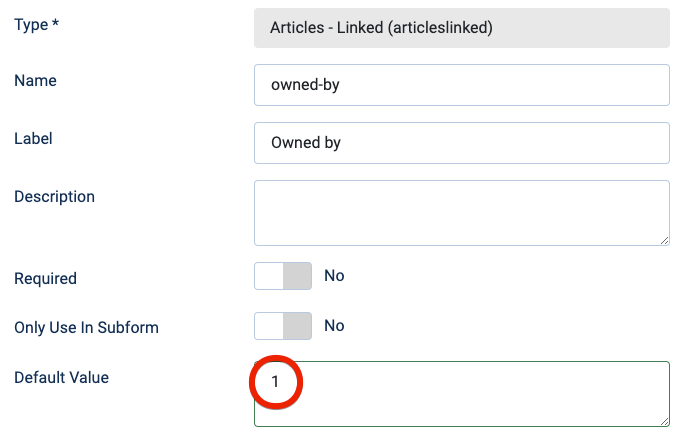
If you have created one or more Articles fields, you can use the Pro-only Articles - Linked field type (articleslinked) to display the articles that link to the current article.
This reverse lookup makes it possible for articles to link back to the articles that selected them. See the second part of the Usage Example for a practical example.
Choosing the fields to search
Use Linked Fields to select which Articles fields should be searched. Leaving the selection empty searches all Articles fields.
When Include Subform Fields is enabled, the reverse lookup also finds selected Articles field values stored inside Subform fields. Disable it to search only values stored directly in Articles fields.
After the reverse lookup, you can further limit the displayed articles with Categories, Tags, Language, Authors, and Custom Fields filters.

Showing the result per article
The Articles - Linked field is a Show/Hide switch in each article editor. Its default value is Hide, so enable it for each article where the reverse links should be displayed.
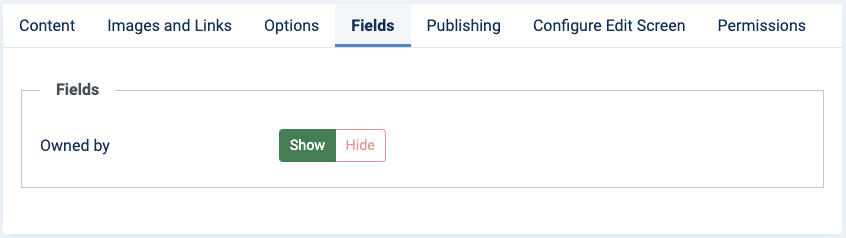
To show reverse links by default, set the custom field's Default Value to 1: