Below you find all the available conditions.
All conditions rules and their settings are available when creating Condition Sets.
Only a subset of these are also available as inline rules, which can either be easily set with the Editor Button, or manually entered in the plugin tags.
An the Rule settings are also mostly only available when using the Condition Sets.
Menu Items
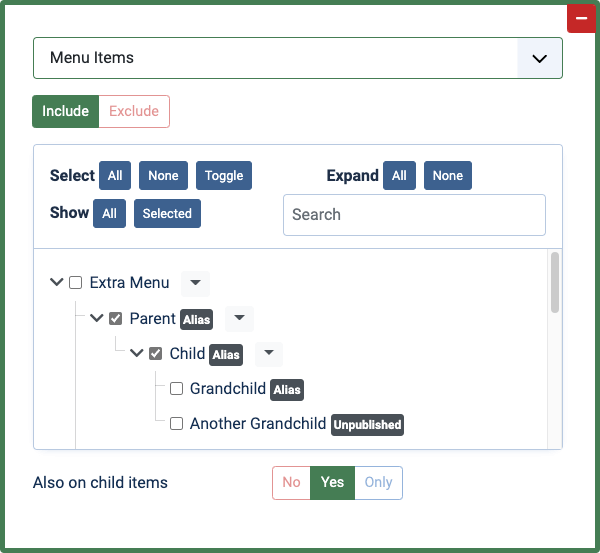
Set the to be included or excluded from any of the available menu items.
Also on Child Items
This option allows you to make the rule pass on menu items that are children of one of the selected menu items.
This is very useful when you regularly add menu items and don't want to update the Condition Set every time. Just select the parent menu item.
Home Page
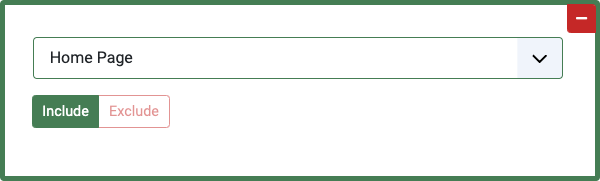
Unlike selecting the home page (default) item via the Menu Items, this will only match the real home page, not any URL that has the same Itemid as the home menu item.
This might not work for all 3rd party SEF extensions.
Date & Time
The date and time rules use the date/time of your servers, not the ones of the visitor's system.
Date
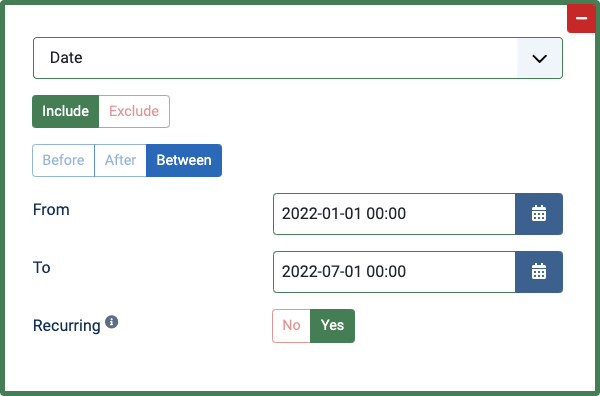
You can make the rule pass Before/After a specific date or, with the "Between" option, in a date range between two dates.
With the "Recurring" option, you can also select to apply the date range every year (so the year in the selection will be ignored).
Seasons PRO
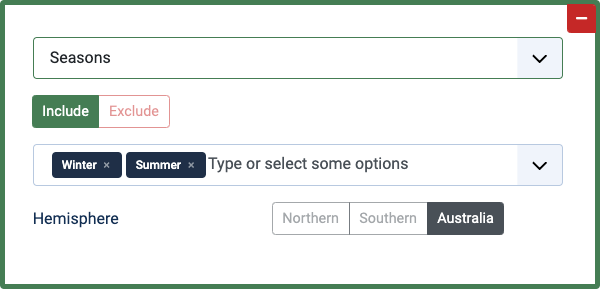
You can choose from these options:
Winter, Spring, Summer, Fall / Autumn
You can also select the hemisphere your website is located in:
Northern, Southern, Australia.
Months PRO
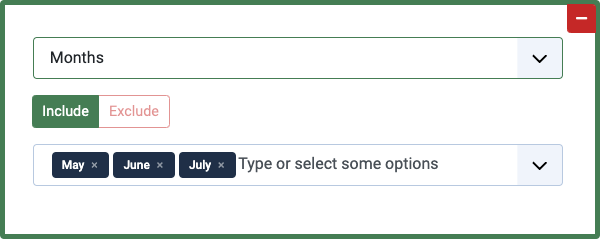
You can choose from these options:
January, February, March, April, May, June, July, August, September, October, November, December
Days of the week PRO
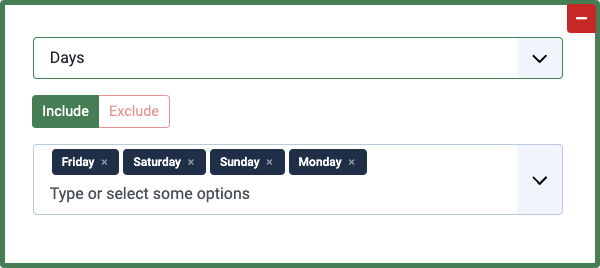
You can choose from these options:
Monday, Tuesday, Wednesday, Thursday, Friday, Saturday, Sunday
Time PRO
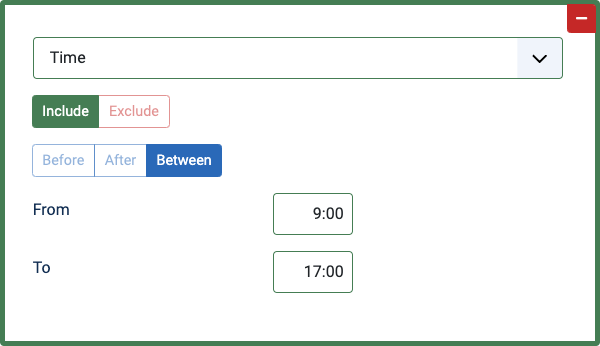
You can make the rule pass Before/After a specific time or, with the "Between" option, in a time range between two times.
Format: 23:59
Joomla! Content
This rule is based on what Joomla content page is displayed, including Page Types, Categories, and specific Articles.
Page types PRO
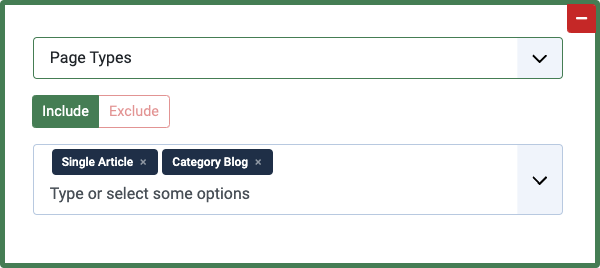
You can choose from these options:
Archived Articles, Single Article, List All Categories, Category Blog, Category List, Featured Articles, Create Article
Categories PRO
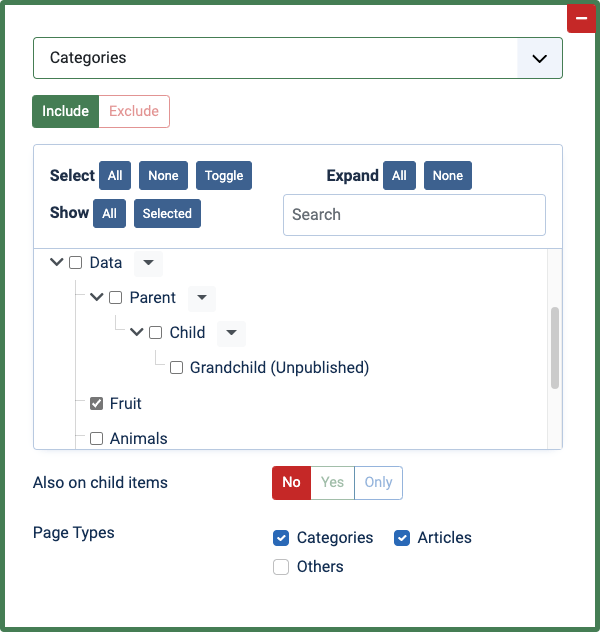
Set the to be included or excluded from any of the Joomla categories.
Also on Child Items
This option allows you to make the rule pass on categories that are children of one of the selected categories.
This is very useful when you regularly add categories and don't want to update the Condition Set every time. Just select the parent category.
Page Types
This option allows you further narrow the rule, to make it only pass on certain page types: Categories, Articles, Others.
Articles PRO
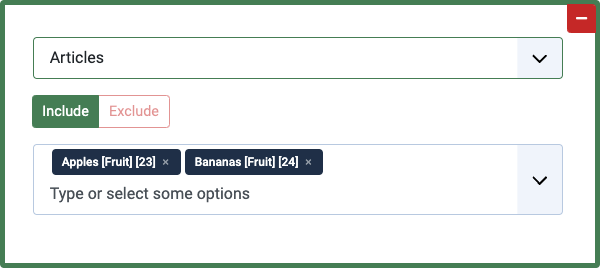
Set the to be included or excluded from any of the Joomla articles.
Featured Articles PRO
Set the to be included or excluded from Featured articles.
Article Publish State PRO
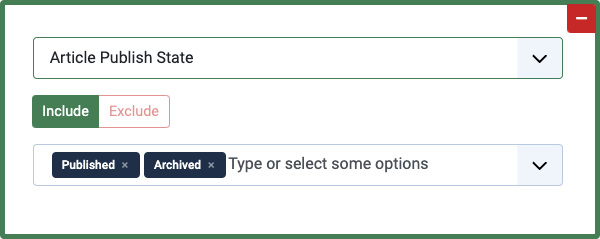
Set the to be included or excluded from the available article publish states:
You can choose from these options:
Published, Unpublished, Archived, Trashed
Article Date PRO
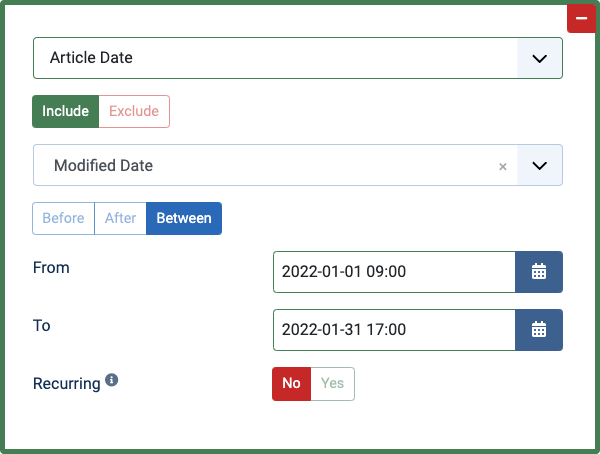
Set the to be included or excluded based on any of these article dates: Created Date, Modified Date, Start Publishing, Finish Publishing
After selecting a Date Type, you can make the rule pass Before/After a specific date or, with the "Between" option, in a date range between two dates.
With the "Recurring" option, you can also select to apply the date range every year (so the year in the selection will be ignored).
Article Authors PRO
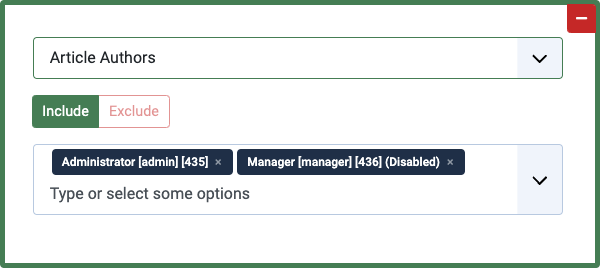
Set the to be included or excluded from articles written by specific authors.
Article Content Keywords PRO
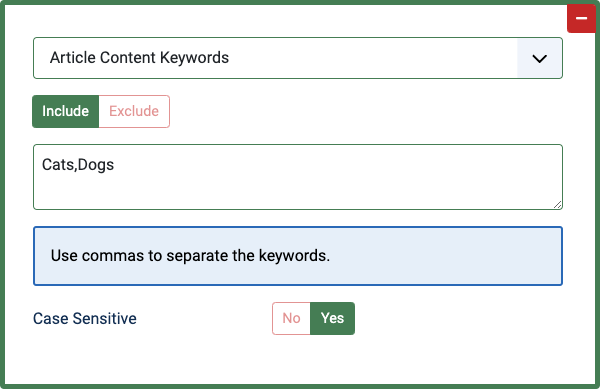
Set the to be included or excluded from articles containing your specified keywords in the content.
You can also turn on the 'Case Sensitive' option.
Article Meta Keywords PRO
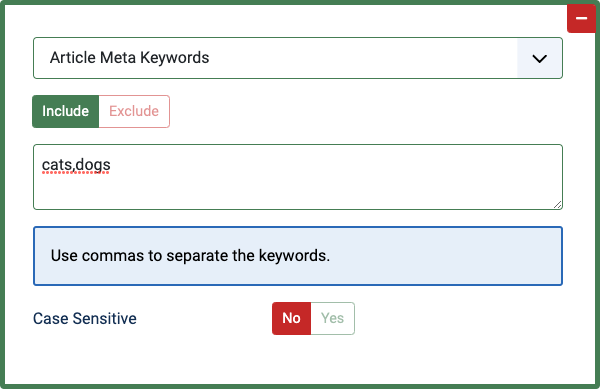
Set the to be included or excluded from articles containing your specified meta keywords.
You can also turn on the 'Case Sensitive' option.
Article Field PRO
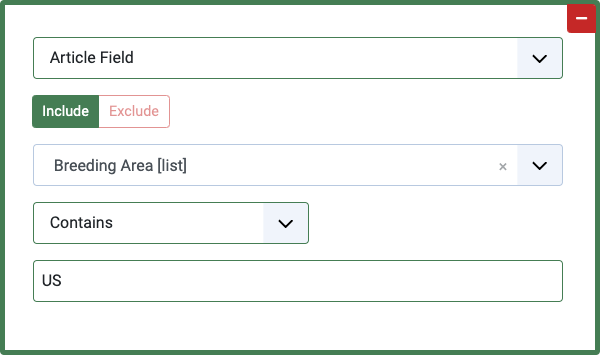
Set the to be included or excluded based on the value of any Custom Field.
You can compare the custom field value with any of these methods:
Is equal to, Is not equal to, Contains, Contains one of, Does not contain, Begins with, Ends with, Is less than, Is greater than, Matches Regular Expressions
Comparison Method
You can choose between the following comparison methods:
- Equals: the field value should match the exact entered text
- Is not equal to: the field value should not match the entered text
- Contains: the field value should contain the entered text
- Contains one of: the field should contain at least one of the entered values (useful for fields with multiple values such as lists)
- Does not contain: the field value should not contain the entered text
- Begins with: the field value should start with the entered text
- Ends with: the field value should end with the entered text
- Less than: the field value should be less than the entered value (useful for fields containing numbers or dates)
- Greater than: the field value should be greater than the entered value (useful for fields containing numbers or dates)
- Regular Expressions: the field value should pass the entered custom Regular Expression check
As you can see, the possibilities are pretty much endless!
List Fields
For certain custom field types, the custom field value gets stored differently in the database compared to how it's displayed on the site.
When creating "select" field types that can have multiple values - like lists, checkboxes and radio buttons - for each option you specify the text and its option value.
For these, the value you have to enter in the assignment is the option value, not the option text (if you're using Articles Field, the option value is the ID of the desired article).
And if you want to specify multiple values for "list" fields, you can simply separate them by comma (for example apples,bananas to match options Apples and Bananas).
Date Fields
By using the "Less Than" and "Greater Than" comparison methods, you can match any article where a calendar custom field value is set to before or after a certain date.
Relative Dates
And if all of this wasn't enough, you can also use dynamic Relative Dates values to match articles where a custom field value is set to the current day, yesterday, tomorrow, or any other date relative to today.
For example, you could set up an assignment to match any article that has an "Event Date" (custom field) set in the future by using the "Greater Than" comparison method, and entering a value of now().
You can enter any of these Relative Dates and Custom Format as values:
now()ordate()ordate('now')=> return current date and time (2026-07-28 20:02:57)
date('today')=> return current date (2026-07-28)
date('tomorrow')=> return date of tomorrow (2026-07-29)
date('yesterday')=> return date of yesterday (2026-07-27)
date('-1 day')=> return date of yesterday with current time (2026-07-27 20:02:57)
date('+2 days')=> return date of 2 days from now with current time (2026-07-30 20:02:57)
date('-1 week')=> return date from 1 week ago with current time (2026-07-21 20:02:57)
date('-1 month')=> return date from 1 month ago with current time (2026-06-28 20:02:57)
date('-1 year')=> return date from 1 year ago with current time (2025-07-28 20:02:57)
See the full list of the possible Relative Date Values that can be used.
For any relative date value, you can also customize the date format it should use. Here are some examples:
date('today', 'l')=> return today's week day name (Tuesday)date('today', 'F')=> return current month's name (July)date('today', 'Y')=> return current year (2026)
date('tomorrow', 'Y-m-d H:i:s')=> return date of tomorrow with time 00:00:00 (2026-07-29 00:00:00)
date('yesterday', 'Y-m-d H:i:s')=> return date of yesterday with time 00:00:00 (2026-07-27 00:00:00)
date('-1 day', 'Y-m-d')=> return date of yesterday (2026-07-27)
date('+2 days', 'Y-m-d')=> return date of 2 days from now (2026-07-30)
date('-1 week', 'Y-m-d')=> return date from 1 week ago (2026-07-21)
date('-1 month', 'Y-m')=> return last month in Y-m format (2026-06)date('-1 year', 'Y')=> return last year (2025)
The date format characters that you can use are based on the PHP date function.
Note: All Date Filters will be adjusted correctly according to the Time Zone used on your website.
Visitors
Users PRO
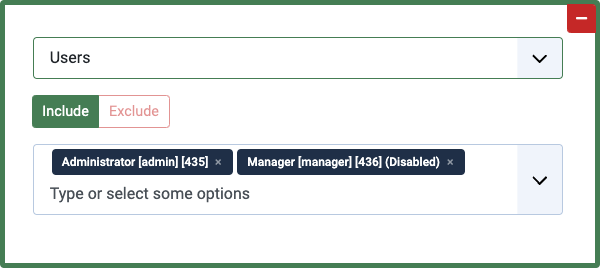
Set the to be included or excluded based on the logged-in user visiting the page.
Access Levels
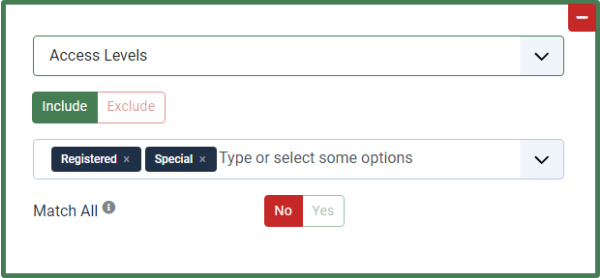
Set the to be included or excluded based on the Access Level assigned to the logged-in user visiting the page.
User Groups
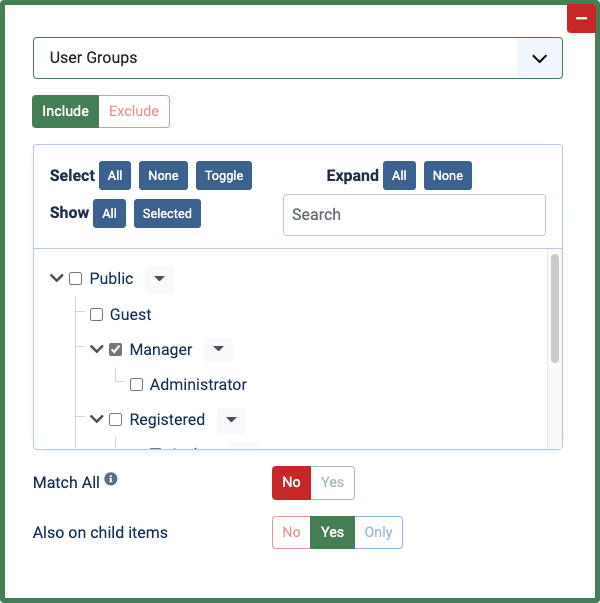
Set the to be included or excluded based on the user group assigned to the logged-in user visiting the page.
Match all
Select to only let the rule pass if all the selected user groups belong to the user at the same time.
Also on Child Items
This option allows you to make the rule pass on user groups that are children of one of the selected groups.
This is very useful when you regularly add user groups and don't want to update the Condition Set every time. Just select the parent user group.
Languages
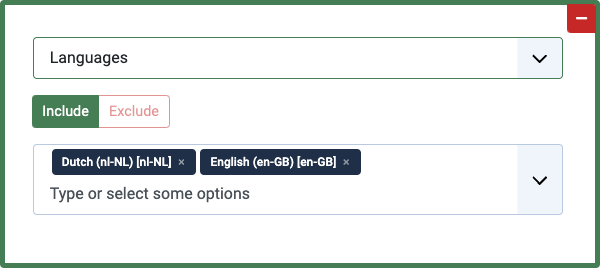
Set the to be included or excluded based on the site Language used by the visitor.
This Languages rule differs from the core in that it allows a selection of multiple languages.
Devices
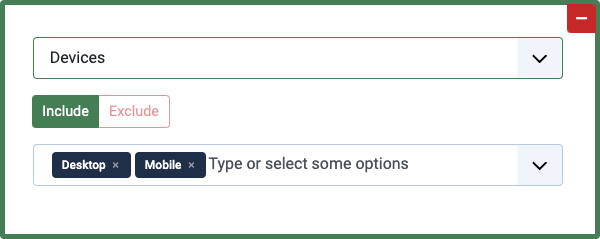
Set the to be included or excluded based on the device of the visitor. Keep in mind that device detection is not always 100% accurate. Users can set up their devices to mimic other devices.
You can choose from these options:
Desktop, Tablet, Mobile
Operating Systems PRO
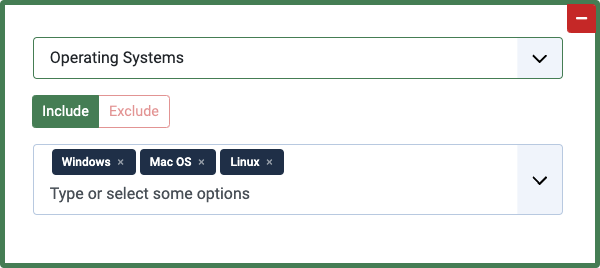
Set the to be included or excluded based on the operating system of the visitor. Keep in mind that operating system detection is not always 100% accurate. Users can set up their browsers to mimic other operating systems.
Browsers PRO
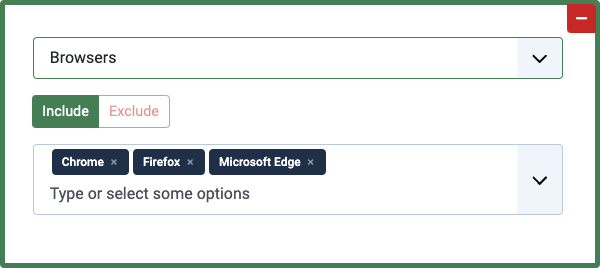
Set the to be included or excluded based on the browser of the visitor. Keep in mind that browser detection is not always 100% accurate. Users can set up their browsers to mimic other browsers
Mobile Browsers PRO
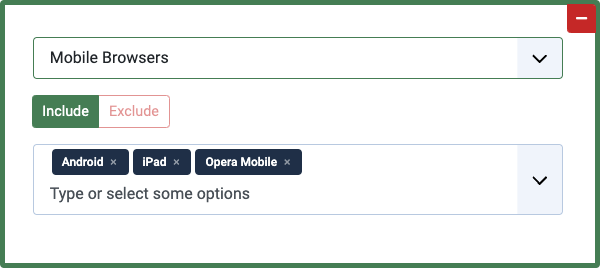
Set the to be included or excluded based on the mobile browser of the visitor. Keep in mind that browser detection is not always 100% accurate. Users can set up their browser to mimic other browsers
IP Addresses PRO
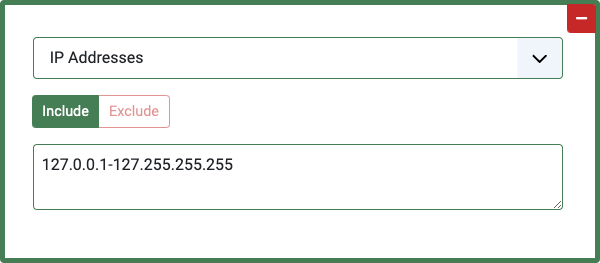
Set the to be included or excluded based on the IP Address of the visitor.
You can enter a comma and/or enter a separated list of IP addresses and IP ranges. For instance:
127.0.0.1
128.0-128.1
129
Geolocation
Geolocating is not always 100% accurate. The geolocation is based on the IP address of the visitor. Not all IP addresses are fixed or known.
To be able to use this rule, you need to install the Regular Labs GeoIP library.
Continents PRO
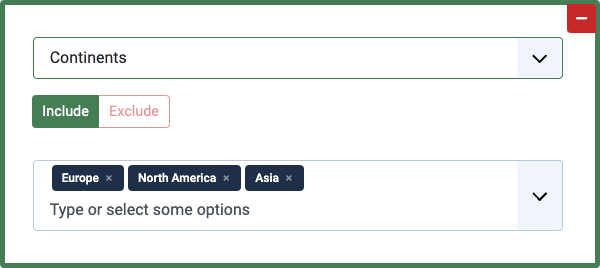
Set the to be included or excluded based on the Continent of the visitor.
Countries PRO
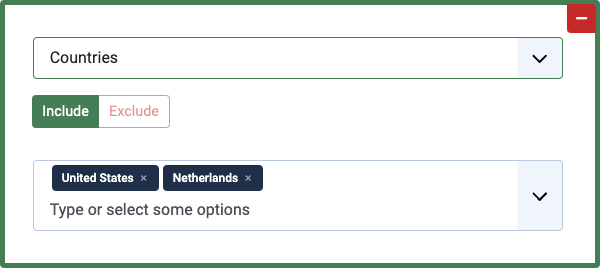
Set the to be included or excluded based on the Country of the visitor.
Regions PRO
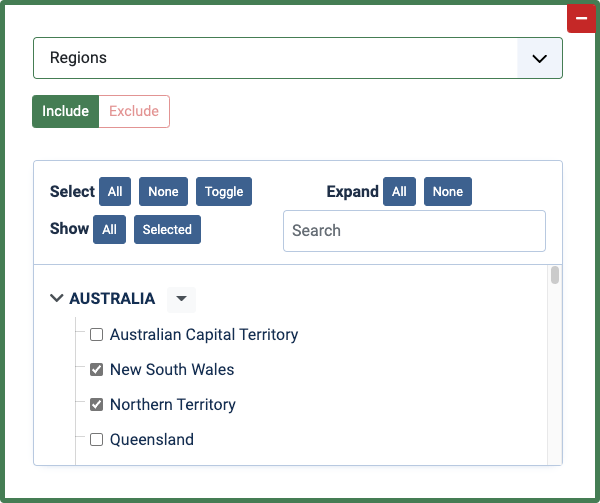
Set the to be included or excluded based on the Region / State of the visitor.
Postal Codes PRO
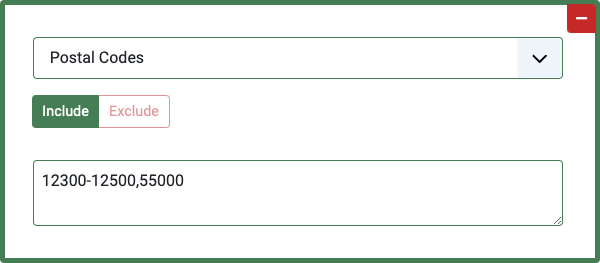
Set the to be included or excluded based on the Postal Code of the visitor.
You can enter a comma-separated list of postal codes (12345) or postal code ranges (12300-12500).
Miscellaneous
Tags PRO
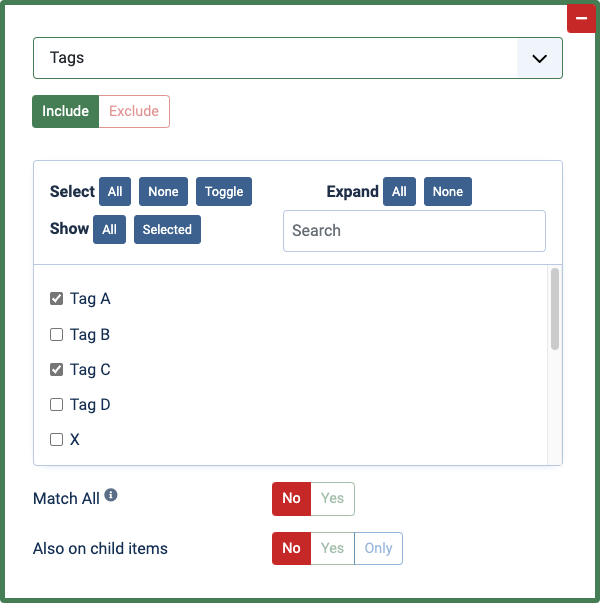
Set the to be included or excluded from any of the Joomla tags or tagged pages.
Match all
Select to only let the rule pass if all the selected tags belong to the page at the same time.
Also on Child Items
This option allows you to make the rule pass on tags that are children of one of the selected tags.
This is very useful when you regularly add tags and don't want to update the Condition Set every time. Just select the parent tag.
Components PRO
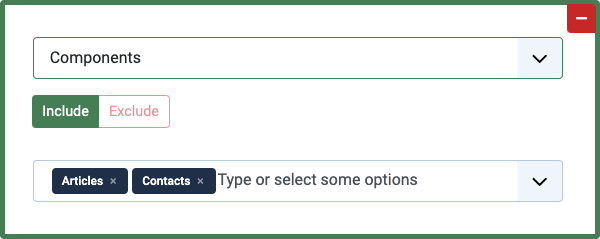
Set the to be included or excluded from specific Components.
Templates PRO
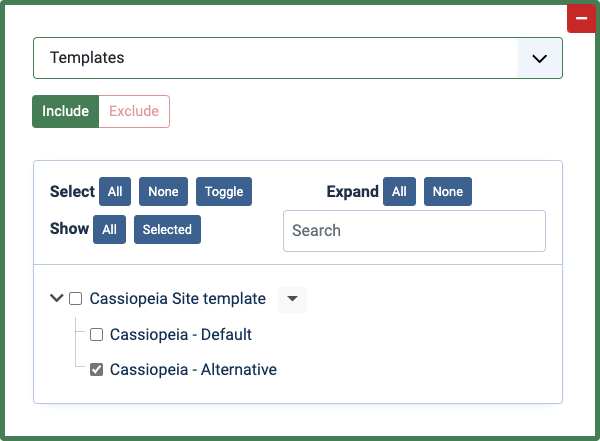
Set the to be included or excluded from specific Templates.
URLs PRO
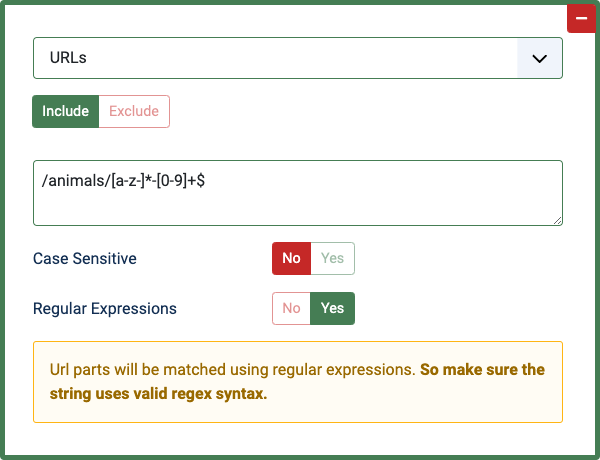
The URL rule allows control over specific pages or groups of pages, with support for Regular Expressions.
You can enter (part of) the URLs to match, by using a new line for each different match.
You can also turn on the 'Case Sensitive' option, or select to treat the value as Regular Expressions.
Custom PHP PRO
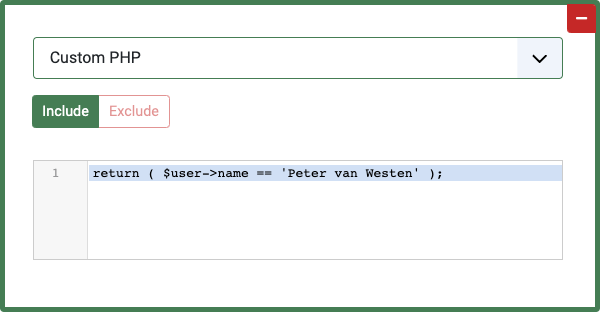
This gives you the opportunity to show or hide a based on anything you can think of. You just need to know what PHP code you should use.
With PHP you can call on all data/information available in the variables, URL, database, etc. And then do your checks on this data. You can control the display by ending the PHP code with a return true or false based on your checks.
For examples and ready-to-use PHP scripts, check out the "Using Custom PHP Conditions" guide.
Other Condition Set
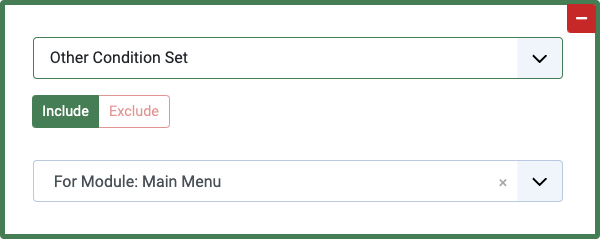
You can also nest another existing Condition Set as part of the current Condition Set.
This allows you to add (or exclude) a set of rules from another Condition Set on top of the current Condition Set.
HikaShop
This rule is based on what HikaShop page is displayed, including Page Types, Categories, and Products.
Page types PRO
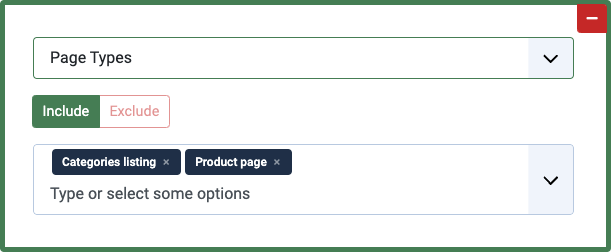
You can choose from these options:
Author's items, Category, Categories, Content item, Favoured Items (category view), Favoured Items (legacy view), My Items, Search, Tagged Items (category view), Tagged Items (legacy view)
Categories PRO
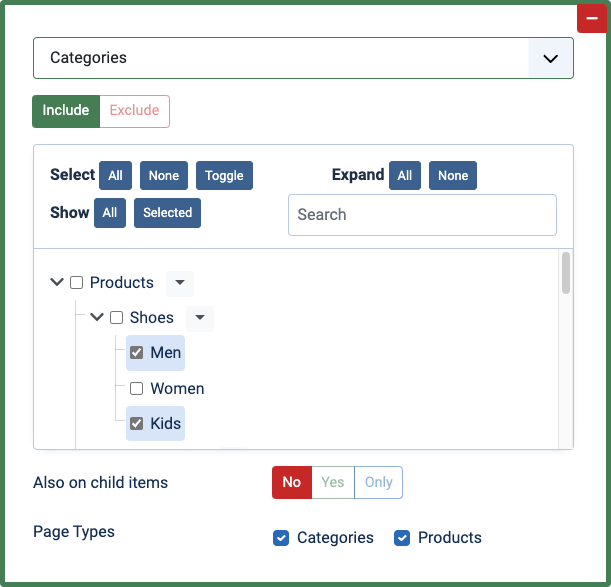
Set the to be included or excluded from any of the HikaShop categories.
Also on Child Items
This option allows you to make the rule pass on categories that are children of one of the selected categories.
This is very useful when you regularly add categories and don't want to update the Condition Set every time. Just select the parent category.
Page Types
This option allows you further narrow the rule, to make it only pass on certain page types: Categories, Products.
Products PRO
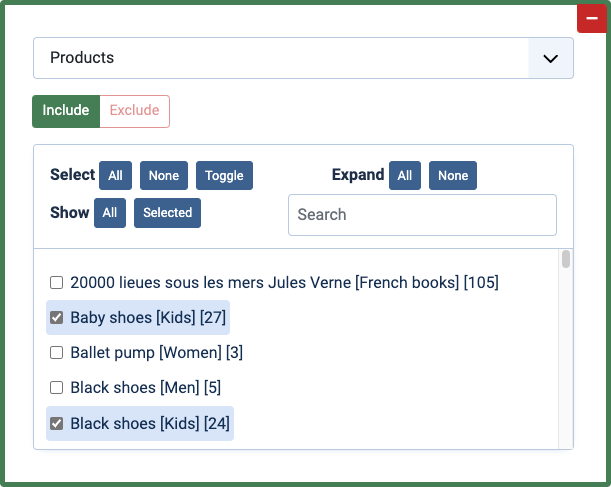
Set the to be included or excluded from any of the HikaShop products.
FLEXIcontent
This rule is based on what FLEXIcontent page is displayed, including Page Types, Tags, and FLEXIcontent Types.
Page types PRO
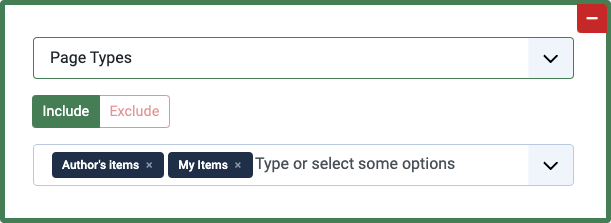
You can choose from these options:
Author's items, Category, Categories, Content item, Favoured Items (category view), Favoured Items (legacy view), My Items, Search, Tagged Items (category view), Tagged Items (legacy view)
Tags PRO
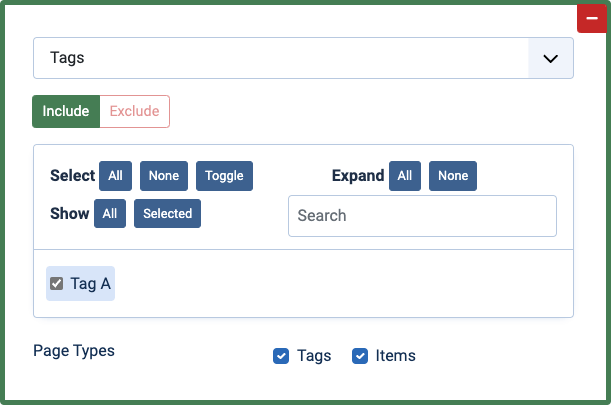
Set the to be included or excluded from any of the FLEXIcontent tags.
Page Types
This option allows you further narrow the rule, to make it only pass on certain page types: Tags, Items.
Types PRO
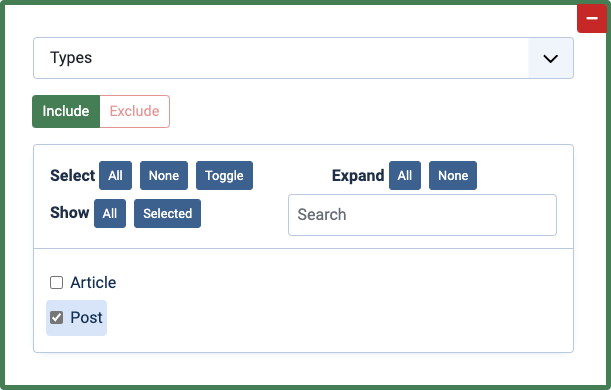
Set the to be included or excluded from any of the FLEXIcontent types.