Once Snippets is installed, you will be able to access it via the Regular Labs - Snippets menu link under Components. This brings you to the component view, which lists all the snippets you created.
To create a Snippet, simply create a new item. You will be presented with the Snippet edit screen:
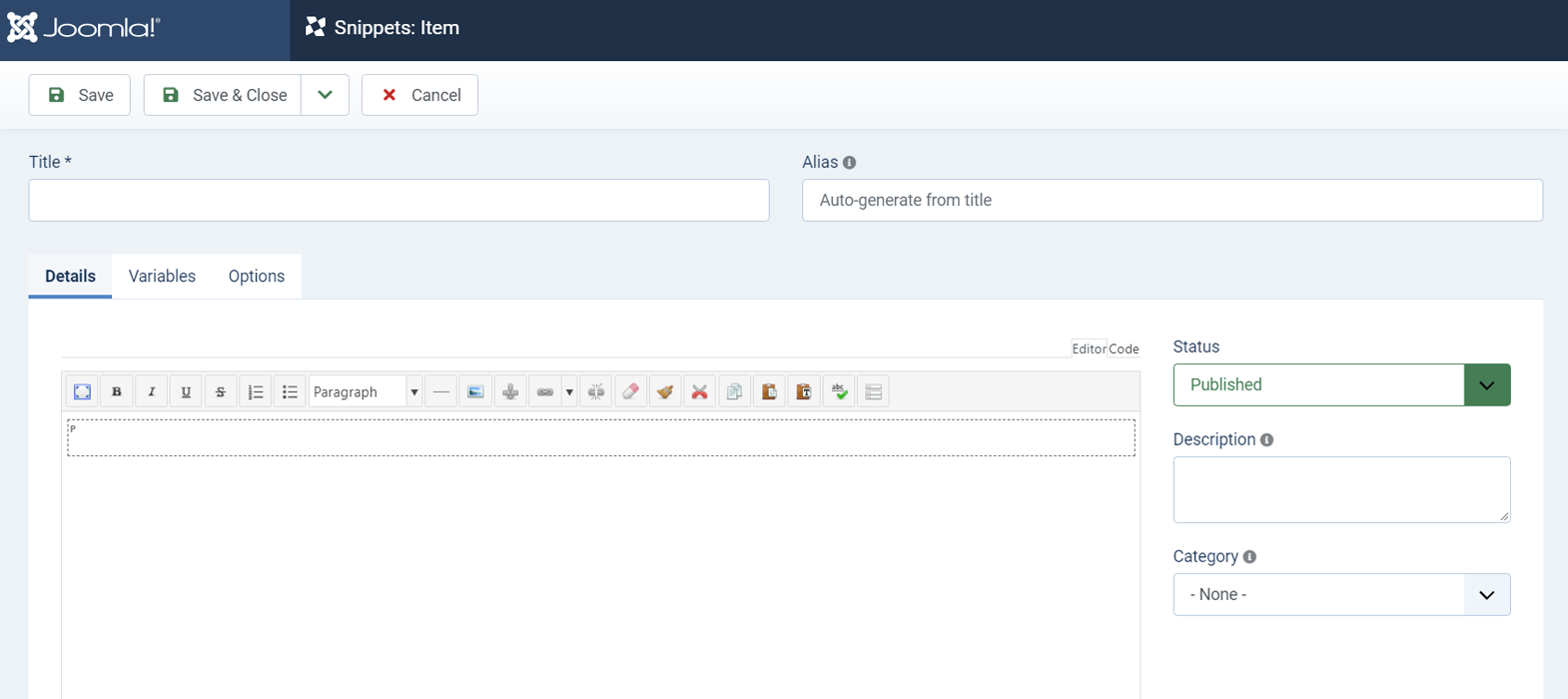
The first thing you want to do is give the Snippet a Title and optionally a custom Alias.
Details / Text
To make a text snippet, you can then simply place your desired content into the editor field. This can be any content you want, with any styling, formatted however you want, just like how you are used to.
Once you're happy with your Snippet, simply save it, and this part is done!
When creating or editing a Snippet, on the right side you also have some options at your disposal. You find a Description field, where you can optionally add a note to describe what you're using the snippet for. You can assign snippets to simple Categories.
| Title | Give the snippet a name. |
| Alias | Optionally give the snippet an alias if you want it to be different than the one Snippets generates based on the title. |
| Status | You can use this to (temporarily) disable this item. |
| Description | Give the item a short description telling you what it actually does. Everything following '---' will not be displayed in the list view. |
| Category | Select or create a category to be displayed. |
Variables PRO
With the Pro version of Snippets, you can pass "variables" to the {snippet} tag that can make your snippet more dynamic.
This allows you to use one snippet that will generate a different output depending on what you pass along in the tag.
See the dedicated guide on Using Dynamic Variables for a tutorial on this feature.
Options
And you can set a few extra settings via the "Options" tab. For example, the "Remove Paragraph Tags" option allows you to remove paragraphs inside the content of a Snippet, which is useful when you want to use the snippet inline (inside sentences).
With the Pro version, you can also decide whether you want to show the Snippet in the select list when the Editor Button is clicked. You can control these settings at a global level as well, see the Configuration Settings section for more details
| Remove Paragraph Tags |
Select to remove paragraph tags inside the snippet. Surrounding tags will be removed. Paragraph tags inside the content will be replaced with double breaks. This option can be used when you want to use the snippet inline (inside sentences), where paragraph tags would create issues. |
| Place HTML comments | By default HTML comments are placed around the output of this extension. These comments can help you troubleshoot when you don't get the output you expect. If you prefer to not have these comments in your HTML output, turn this option off. |
| Enable in html head | Select to make the Snippet tags also get replaced inside the head part of the html output. |
| Show in Editor Button List | Select whether to show the Snippet in the select list when the Snippets editor button is clicked |